


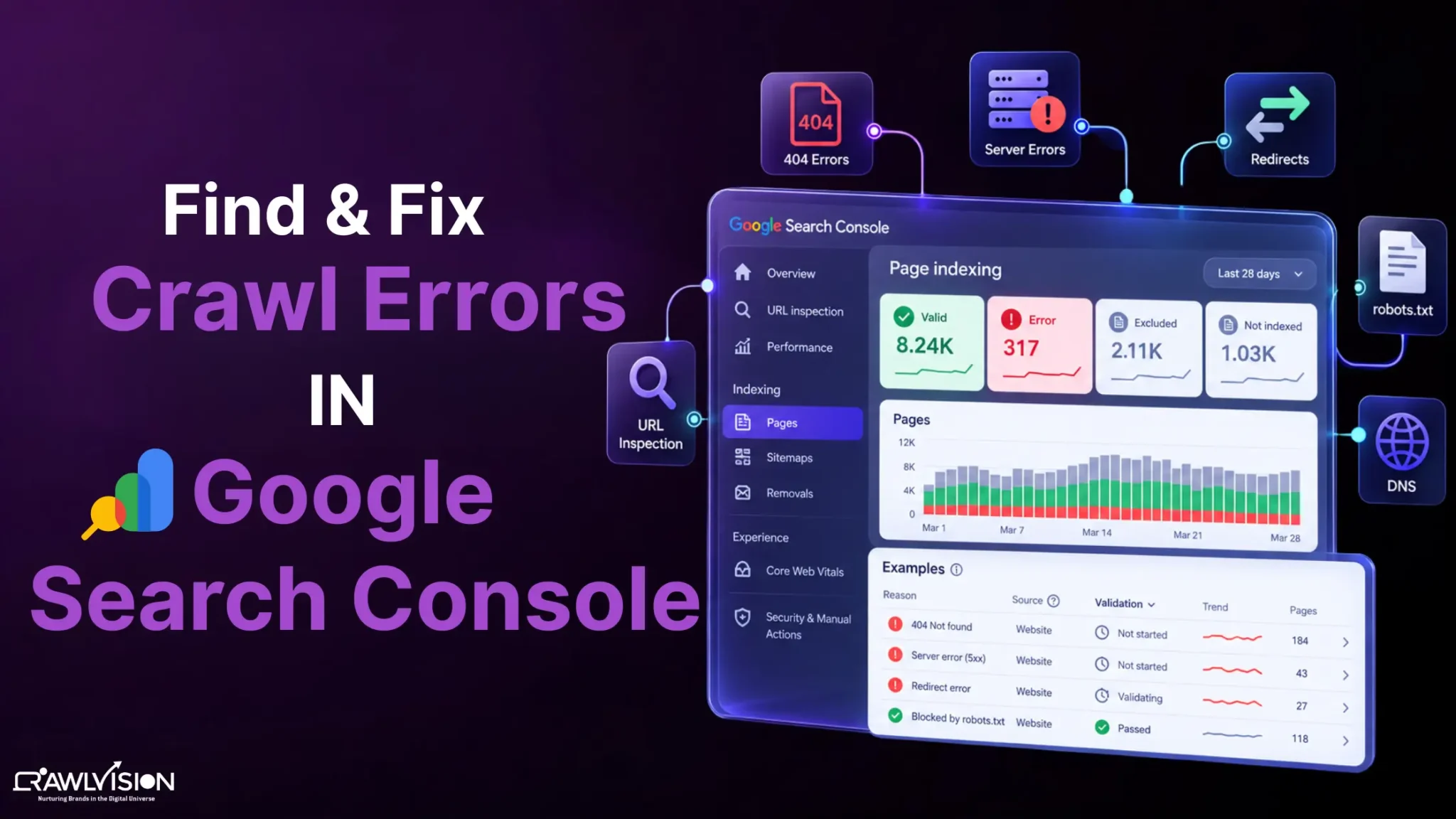
To find crawl errors in Google Search Console, open your property and review the Page Indexing report, then use URL Inspection to investigate individual URLs. Look for server errors, 404s, redirect issues, robots.txt restrictions, and other crawling problems.
What Are Crawl Errors?
Crawl errors occur when Google has trouble accessing or fetching a URL. They are different from indexing and ranking problems, so identifying the type of issue is the first step toward fixing it.
- Crawl Issue: Google has trouble accessing or fetching a URL.
- Indexing Issue: Google can access a URL but does not include it in its index.
- Ranking Issue: A page is indexed but does not appear prominently for relevant searches.
For example, a page returning a 500 server error has a crawling problem. A page that Google successfully crawls but excludes because of another indexing reason has an indexing issue instead.
Understanding this distinction matters because fixing an indexing issue will not necessarily resolve a crawling problem.
What Crawl Errors Can Google Search Console Show?
Google Search Console can surface several types of crawling and access problems, including server responses, redirects, robots.txt restrictions, and connectivity issues.
1. Server errors
Server errors usually involve HTTP 5xx responses. They indicate that the server could not successfully fulfill Google’s request. Temporary failures may resolve themselves, while recurring errors need investigation at the server or application level.
2. 404 Errors
A 404 response means the requested URL cannot be found. A 404 is not automatically a problem. If a page was intentionally removed and has no suitable replacement, the response may be appropriate. However, broken internal links or valuable deleted URLs can require action.
3. Redirect errors
Redirect problems can prevent Google from reaching the intended destination. Common examples include redirect loops, excessively long redirect chains, or redirects pointing to unavailable URLs.
4. Robots.txt errors
A robots.txt rule can prevent Googlebot from crawling specific URLs or areas of a site. Check the site’s robots.txt file when a URL appears inaccessible because crawling has been restricted.
5. Dns/server connectivity issues
Google may encounter problems resolving a domain or connecting to the website’s server. These issues can prevent successful crawling even when the page itself is technically available to users at other times.
6. Other url crawling issues
Some URLs require individual investigation rather than fitting neatly into one category. HTTP responses, redirects, robots.txt rules, and server behavior can help explain why Google or AI crawler cannot crawl a page successfully.
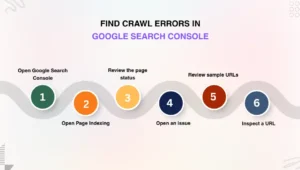
How to Find Crawl Errors in Google Search Console: 2 Main Methods
Use the Page Indexing report to identify patterns across URLs and URL Inspection to investigate a specific page. Together, these two Google Search Console tools cover the most useful URL-level checks.
Method 1: Page Indexing Report
Use the Page Indexing report when you want to identify patterns across multiple URLs and see which pages Google has or has not indexed.
Follow these steps:
- Open Google Search Console: Sign in and select the website property you want to investigate.
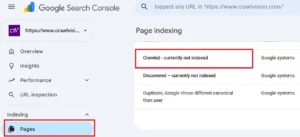
- Open Page Indexing: In the left-hand navigation, go to Indexing → Pages.
- Review the page status: Look at the indexed and non-indexed URL information. Pay attention to issues that may indicate crawling or access problems.
- Open an issue: Click a specific issue or reason to see more details about the affected URLs.
- Review sample URLs: Open the list of affected URLs and identify whether the problem affects one page, a section of the website, or many URLs.
- Inspect a URL: Copy an affected URL and enter it into the URL Inspection tool for a more detailed investigation.
Important: A URL appearing under a non-indexed category does not automatically mean it has a crawl error. Check the specific reason reported by Google before deciding how to fix it.
Method 2: URL Inspection Tool
Use URL Inspection when you already have a specific URL that you want to check for crawling or indexing problems.
Follow these steps:
- Open URL Inspection: Sign in to Google Search Console and select the relevant website property.
- Enter the URL: Paste the complete page URL into the inspection field at the top of Search Console.
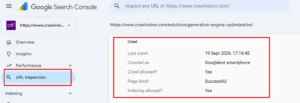
- Review the results: Check the information Google provides about the URL’s indexing and crawling status.
- Check the reported issue: If Google identifies a problem, review the specific reason and any additional information provided.
- Test the live URL: When appropriate, use the live testing option to check whether the current version of the page can be accessed.
- Investigate the cause: If the URL cannot be accessed properly, check its HTTP response, redirects, robots.txt rules, and server availability.
- Fix and recheck: Correct the underlying issue, then inspect the URL again to confirm whether its status has changed.
URL Inspection is particularly useful when you need to investigate one page rather than identify a site-wide pattern. It can also help confirm whether a change you made has improved Google’s ability to access the URL.
How to Fix Crawl Errors in Google Search Console
Fixing crawl errors starts with identifying the actual cause. For each issue, diagnose the URL, make the appropriate technical change, and then validate that Google can access it.
1. Fix server errors
Diagnose: Check the affected URL and determine whether it returns a 5xx response. If the problem is recurring, review server or application logs.
Fix: Resolve the underlying hosting, server, application, or configuration problem. Temporary outages should also be monitored to ensure they do not become recurring failures.
Validate: Reinspect the URL after the issue is resolved and confirm that the server now responds normally.
2. Fix 404 errors
Diagnose: Determine why the URL returns 404 and whether the page was intentionally removed, moved, or accidentally broken.
Fix: Restore the page if it should exist. If an equivalent page exists at another URL, implement an appropriate redirect. Remove outdated internal links when there is no replacement.
Validate: Test the URL and relevant internal links after making the change. Then monitor the affected URLs in Search Console.
3. Fix redirect errors
Diagnose: Follow the redirect path and check for loops, unnecessary chains, incorrect destinations, or unavailable target URLs.
Fix: Simplify the redirect path and send users and search engines directly to the correct final URL wherever practical.
Validate: Test the original URL and final destination to confirm that the redirect resolves correctly without creating another access problem.
4. Check robots.txt restrictions
Diagnose: Review the site’s robots.txt file and identify whether a rule is preventing Googlebot from crawling the affected URL.
Fix: Remove or modify an incorrect blocking rule. Be careful when changing robots.txt because a broad rule can affect many URLs at once.
Validate: Confirm that the intended URL is no longer unnecessarily restricted and use Google’s available inspection tools to investigate its current crawl status.
5. Resolve dns and server issues
Diagnose: Check whether the domain resolves correctly and whether Google’s crawler can connect to the server consistently.
Fix: Work with the hosting, DNS, or infrastructure team to resolve configuration and availability problems.
Validate: Confirm that the domain resolves and the affected URLs return expected responses before checking them again in Search Console.
6. Fix other url crawling issues
Diagnose: Inspect the specific URL’s response, redirects, robots.txt rules, and server behavior instead of assuming the problem from its category alone.
Fix: Address the underlying technical condition and check whether internal links or other site elements are contributing to the issue.
Validate: Reinspect the URL after the change and monitor the relevant Search Console report for signs that the issue has been resolved.
In our technical SEO audits at Crawl Vision, we use this diagnosis process to trace crawling issues back to their underlying technical causes.
Conclusion
Finding crawl errors in Google Search Console is mainly about connecting the reported URL issue to its technical cause. Start with Page Indexing to identify patterns, then use URL Inspection to investigate individual pages.
The fix depends on the problem. Server errors require server investigation, 404s require URL and content decisions, redirects need path cleanup, and robots.txt issues require careful access control. After making a change, always validate the affected URL rather than assuming the problem is resolved.