


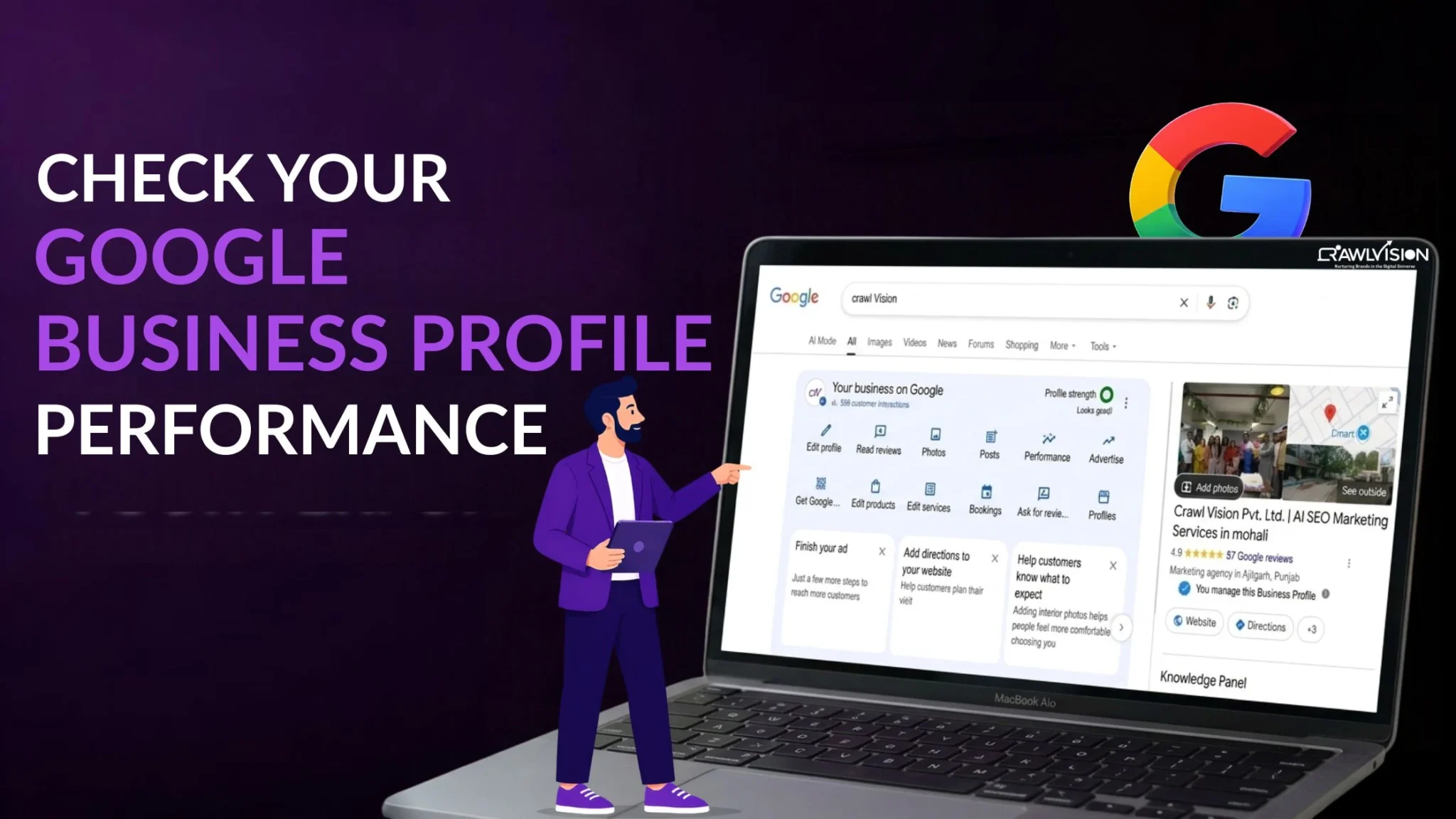
To check your Google Business Profile performance, sign in to the Google account linked to your verified profile. Open your Business Profile through Google Search or the Google Maps app, select Performance, choose a date range, and review searches, views, calls, website clicks, and other available customer interactions.
Why Checking GBP Performance Is Crucial for Local SEO
Checking Google Business Profile (GBP) performance helps you understand how customers discover your business on Google Search and Maps and what they do after finding your profile. These insights help you evaluate local visibility, identify customer interest, and decide what needs improvement.
For example, an increase in profile views without a corresponding increase in calls or website clicks may indicate that people are finding your business but not taking the next step. This is a reason to investigate your profile information, reviews, services, and contact details.
Regular performance checks help you:
- Measure local visibility: Understand how people discover your profile through relevant searches.
- Identify customer interest: See which searches bring people to your business.
- Track customer actions: Monitor calls, website clicks, direction requests, and other available interactions.
- Make informed improvements: Compare performance over time and identify areas that need attention.
Performance data does not directly prove that your local rankings have improved. Instead, it helps you understand how people discover and interact with your profile.
How to Check Your Google Business Profile Performance (2 Methods)
You can check Google Business Profile performance through Google Search on a computer or the Google Maps app on your mobile device. Both methods let eligible profile owners and managers access performance information and select a reporting period.
1. Check performance via Google search
Google Search provides a convenient way to access your Business Profile performance without opening a separate reporting tool.
Steps:
- Open Google Search and sign in to the Google account associated with your verified Business Profile.
- Search for your business name to bring up the profile management interface.
- Select Performance from the available profile management options.
- Choose the reporting period, review the available metrics, and select Apply to view the results.
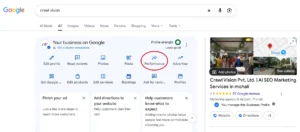
Insight: Compare the selected period with an equivalent earlier period where possible. Look beyond the overall totals to understand whether profile views and customer actions are moving in the same direction.
2. Check performance via the Google maps app
The Google Maps app is useful when you want to review your Business Profile performance on your phone. The steps are slightly different, but you can access similar reporting information.
Steps:
- Open the Google Maps app on your mobile device.
- Tap Business at the bottom-right of the screen.
- Find Performance and tap See more.
- Select your preferred reporting period, review the available metrics, and tap Apply.
Insight: Use the mobile report to check customer interactions regularly, especially when you manage a local business and want to monitor calls, website clicks, or direction requests. The metrics available can vary by business type and profile setup.
Google’s official Business Profile performance documentation explains both access methods and the available metrics.
Which Google Business Profile Metrics Should You Track?
The most useful Google Business Profile metrics are those that show how customers discover your business and which actions they take. Track visibility and customer interactions together rather than judging performance using a single number.
| Metric | What it tells you |
| Searches | Search terms people used when your profile appeared |
| Views | Unique visitors who viewed your profile on Search and Maps |
| Interactions | Summary of tracked customer actions |
| Calls | Clicks on your profile’s call button |
| Website clicks | Clicks on your profile’s website link |
| Direction requests | Requests for directions to your business |
| Bookings and other actions | Relevant actions available for your profile, depending on setup |
Not every metric appears on every profile. For example, booking data depends on the applicable booking integration.
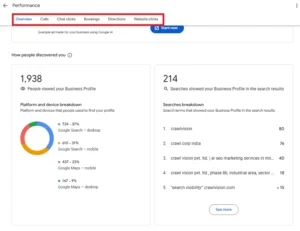 Also, calls represent clicks on the call button, not necessarily completed conversations. Website clicks do not confirm that visitors became leads or customers. Use these figures as indicators of customer interest, then compare them with actual enquiries and conversions.
How to Analyze Your Google Business Profile Performance
To analyze GBP performance, compare reporting periods, review search terms, evaluate customer actions, and connect profile activity with website and lead data. This helps you distinguish increased visibility from meaningful business outcomes.
Compare performance over different periods
- Select a consistent reporting period, such as the previous 30 days, and compare it with the preceding 30 days.
- Review changes in searches, views, calls, website clicks, and direction requests.
- Before attributing a rise or fall to your SEO efforts, consider seasonal demand, holidays, business hours, and recent profile changes.
For example, more views alongside fewer calls may warrant an investigation into your contact details, services, or customer expectations.
Identify the search terms bringing customers to your profile
- Open the searches section of your Performance report.
- Review the terms people used to discover your profile.
- Identify relevant service-related searches and investigate terms that do not match your business.
These search terms can reveal how customers describe their needs. Use that understanding to improve relevant business information and website content. You cannot directly control which search terms Google reports or guarantee visibility for a particular query.
Measure calls, website clicks, and direction requests
- Review each customer action separately.
- Compare changes in actions with changes in profile views.
- Where possible, check actual phone enquiries, website conversions, and customer visits to understand whether activity leads to business results.
A rise in direction requests may be encouraging for a shop or restaurant, while website clicks may matter more for relevant to a professional service business.
Connect profile activity to website traffic and leads
- Add suitable UTM parameters to your profile’s website URL to help identify traffic sources in Google Analytics.
- Review relevant traffic and conversion reports in GA4.
- Compare website visits, enquiries, and other conversion events with GBP performance over the same period.
Google also supports connecting eligible Business Profiles to Google Analytics for aggregated profile metrics. See the official GBP and Google Analytics integration documentation for setup details and limitations.
What to Do When Your Google Business Profile Performance Drops
If your GBP performance drops, first confirm that the decline is real, then investigate visibility, profile accuracy, and customer actions before making changes. A single weak reporting period does not automatically mean your local SEO has failed.
- Check the reporting period.
Confirm that you are comparing equivalent dates and allowing time for delayed reporting. Search-term data may take up to five days to appear after its monthly update. - Review profile accuracy.
Check your business category, address, opening hours, phone number, website, and services. Correct outdated information that could confuse potential customers. - Investigate visibility changes.
Review relevant search terms, business updates, seasonality, and local competitors. Google identifies relevance, distance, and prominence as key considerations in local ranking. - Investigate customer actions.
If views remain stable but calls or website clicks fall, review your profile information, reviews, service details, and conversion paths. Track results after making meaningful improvements.
Avoid changing several elements at once without documenting them. Keeping a record makes it easier to understand which changes coincide with better performance.
How to Track Google Business Profile Performance Regularly
A monthly review is a practical starting point for most businesses. Record key metrics, note important changes, and compare results with previous periods instead of reacting to every small fluctuation.
- Create a Monthly Performance Report: Record searches, views, calls, website clicks, and direction requests where available. Add notes about profile updates, promotions, or seasonal changes.
- Track Website Visits with Google Analytics: Use UTM-tagged URLs or the available GBP integration to connect profile activity with website traffic and conversions.
- Compare Results Across Multiple Locations: If you manage several locations, review each profile separately where possible. Google Business Profile Manager also supports downloading performance data for multiple profiles.
Keep the reporting process consistent so you can spot meaningful patterns and prioritize improvements.
Conclusion
Checking your Google Business Profile performance helps you understand how people find your business, how they interact with your listing, and where your local SEO efforts may need attention. Review the data regularly, compare equivalent periods, and connect profile interactions with actual enquiries wherever possible.
At Crawl Vision, our local SEO approach focuses on making business information discoverable and turning visibility into measurable outcomes. Combine performance tracking with a well-maintained profile and a locally optimized website to make better-informed decisions about your next steps.