


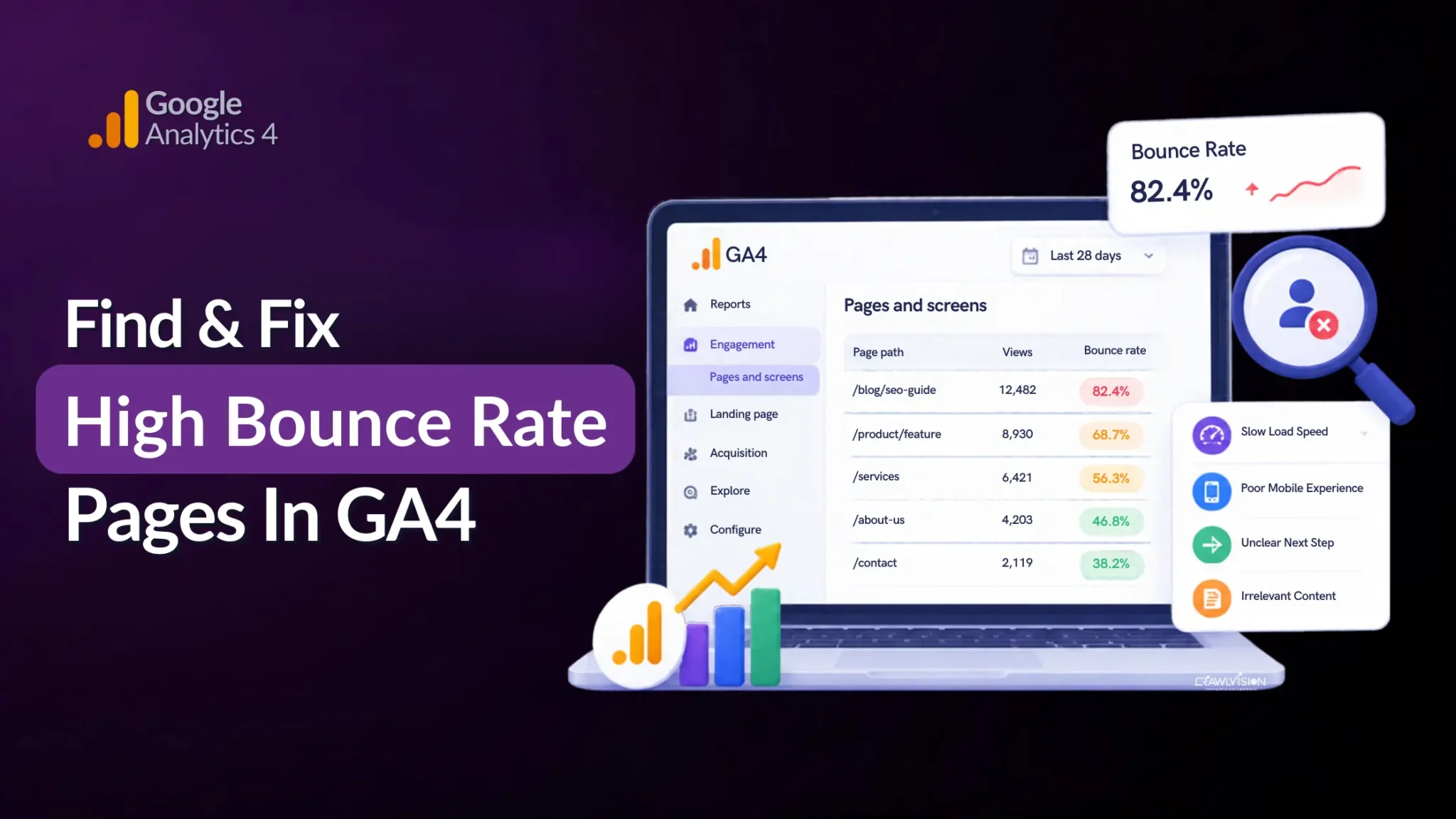
To find high bounce rate pages, open Google Analytics 4 (GA4) and review the Pages and screens report or Landing page report. Add the bounce rate metric where available, compare pages with similar purposes, and investigate whether slow loading, poor content relevance, or unclear next steps are affecting engagement.
What Is a High Bounce Rate?
A high bounce rate means a large percentage of sessions on your website were not considered engaged in Google Analytics. An engaged session lasts longer than 10 seconds, includes a key event, or records at least two page or screen views.
GA4 calculates bounce rate as the percentage of sessions that were not engaged. It is the inverse of engagement rate, so a page with a 70% bounce rate has a 30% engagement rate.
However, a high bounce rate does not automatically mean a page is performing poorly. Someone might read a complete blog post, find the answer they need, and leave without visiting another page.
The right approach is to compare bounce rate with the page’s purpose, traffic volume, conversions, and engagement data before deciding whether it needs improvement.
How to Find Pages with High Bounce Rates in GA4
You can identify pages with high bounce rates using GA4 reports and Explorations. The best method depends on whether you want to examine pages visited during sessions or specifically analyze the pages where sessions began.
Step 1: open the pages and screens report
Sign in to GA4 and select Reports > Engagement > Pages and screens.
This report shows which pages visitors view and provides metrics for evaluating their activity.
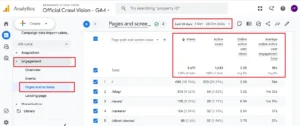
Review the available columns and choose a suitable date range. Compare performance over a meaningful period rather than relying on a single day of data.
Remember that this report includes pages visited throughout a session, not just the first page a visitor sees. For that reason, use it to examine overall page activity, then investigate landing pages separately when necessary.
Step 2: add the bounce rate metric
GA4 does not necessarily display bounce rate in every report by default. You may need to customize the report to include it.
- Open the Pages and screens detail report.
- Select Customize report in the upper-right corner.
- Open the Metrics section under Report data.
- Select Add metric and search for Bounce rate.
- Add the metric, apply the changes, and save the report.
You generally need an Editor or Administrator role to customize a detail report. If the customization option is unavailable, ask someone with the appropriate permissions to update it.
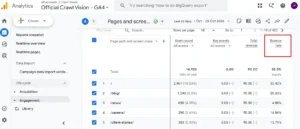
Once bounce rate appears, review it alongside views, average engagement time, and key events where relevant. A percentage alone cannot tell you whether a page is attracting the wrong audience or successfully answering a visitor’s question.
Step 3: find and filter the relevant urls
Use the report’s search or filter options to narrow the data to specific URLs or page groups.
For example, you could examine blog posts separately from service pages, product pages, or contact pages. This makes comparisons more meaningful because visitors behave differently depending on what a page is designed to achieve.
If you specifically want to investigate landing page bounce rate, open Reports > Engagement > Landing page, if that report is available in your GA4 property.
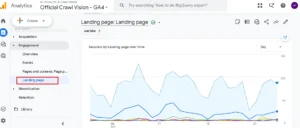
This report focuses on the first page visited in a session. If bounce rate is not included, customize the detail report to add it where supported.
For more flexible analysis, use GA4 Explorations and the Landing page dimension to build a table with landing pages, sessions, bounce rate, and key events. This helps you identify URLs that attract substantial traffic but may have engagement or conversion problems.
Step 4: compare performance and identify patterns
Sort or compare the relevant data to identify pages worth investigating. Avoid automatically labeling every page with a high bounce rate as a problem.
Look for patterns such as:
- Landing pages with high bounce rates and substantial traffic.
- Service pages with few key events or enquiries.
- Blog posts that attract visitors but offer no relevant next step.
- Pages where engagement changes sharply across traffic sources or devices.
Compare similar pages over the same date range. A detailed informational article should not necessarily be judged by the same criteria as a lead-generation landing page.
If many pages show unexpectedly low engagement, investigate your analytics implementation as well. Incorrect tagging or missing events can distort how GA4 measures engagement.
Why Do Some Pages Have a High Bounce Rate?
High bounce rates can reflect content, technical, or measurement issues, but they can also indicate that visitors found what they needed. Investigate the context before choosing a fix.
1. Slow page load speed
Visitors may leave before a slow page finishes loading or becomes usable. Check page performance, image sizes, scripts, and server response times to identify potential bottlenecks.
2. Poor mobile optimization
A page that is difficult to read or navigate on a phone can frustrate visitors. Review text size, button spacing, layout shifts, and mobile usability.
3. Search intent mismatch
Visitors may expect one answer from a search result but find something different on the page. Align the title, introduction, and main content with the search intent or query that brought them there.
4. No clear next step
A page can answer a question but leave interested visitors unsure what to do next. Add relevant internal links, useful related resources, or a clear call to action where it supports the reader’s goal.
5. Satisfied intent (the “good” bounce)
Some visitors leave because they found the information they wanted. For example, someone checking a definition or reading a complete tutorial may have no reason to visit another page.
In these cases, a high bounce rate may not require a fix. Evaluate whether the page meets its purpose instead of trying to reduce the metric at any cost.
How to Fix High Bounce Rate Pages
Fix high bounce rate pages by addressing the specific reason visitors may be leaving. Start with evidence from analytics, performance checks, and the page’s intended purpose rather than making several changes at once.
1. Optimize core web vitals (speed and stability)
Review your Core Web Vitals and investigate slow loading, unstable layouts, and delayed interactions. Compress oversized images, remove unnecessary scripts, and improve rendering where appropriate. Recheck performance after making changes to understand whether the page experience has improved.
2. Match content to user search intent
Make sure the page answers the question that brought visitors to it. Put the main answer near the beginning, use descriptive headings, and remove content that distracts from the page’s purpose. For organic traffic, compare the page with the queries and landing-page data available in Search Console and GA4.
3. Improve visual hierarchy and readability
Break long sections into focused paragraphs, use informative subheadings, and make important information easy to locate. Ensure the text is readable on mobile devices and that important buttons or forms are easy to find.
4. Build strong, logical internal links
Add links to related pages when they help visitors take a useful next step. A blog post about a technical SEO problem, for example, could link naturally to a relevant technical SEO resource. Avoid adding unrelated links just to encourage additional pageviews.
5. Use engaging multimedia (videos/charts)
Use videos, screenshots, diagrams, or charts when they explain something more clearly than text alone. Keep media relevant and optimized so it does not slow down the page or distract visitors from the main information.
How to Prioritise Bounce Rate Fixes?
Prioritize pages based on business impact, traffic, and evidence of an underlying problem, not bounce rate alone. A high-traffic service page with few enquiries may deserve attention before a low-traffic article that already satisfies its readers.
| Page type or situation | What to investigate | Priority |
| High-traffic service page with few enquiries | Search intent, form usability, calls to action | High |
| Landing page with high bounce rate and slow loading | Page speed, mobile experience, technical issues | High |
| Blog post with high bounce rate but strong engagement signals | Content usefulness and intended reader outcome | Low, unless other evidence suggests a problem |
| Low-traffic page with inconsistent data | Tracking accuracy and sample size | Investigate before prioritizing |
Use this table as a starting point, not a universal ranking system. Check conversions, engagement, traffic sources, and page purpose before committing resources to a fix.
Conclusion
Finding high bounce rate pages in GA4 is the first step. The real work is understanding why visitors leave and whether that behavior signals a genuine problem.
Start with the Pages and screens report, examine landing pages separately, and compare bounce rate with engagement and conversions. Then prioritize changes that address verified issues, whether they involve page speed, content relevance, mobile usability, or navigation.
At Crawl Vision, our SEO audit approach looks beyond individual metrics to understand how technical issues, content relevance, and user experience affect website performance.
A high bounce rate alone does not tell the whole story. The most useful insights come from examining visitor intent, engagement, and conversions together before deciding which pages need improvement.